
Blog
How To Use Internal Approval In DocBoss
Critical project documents often go through 5 to 8 review cycles before achieving final approval, leading to an exponential administrative…

Document controllers are typically forced to manually apply different, highly specific routing paths and reviewer groups for every document submission based on its current stage (e.g., initial draft vs. final approval), which leads to significant rework, delays, and the high risk of sending critical documents to the wrong people or omitting necessary reviewers.
How can you get a better handle on this work and improve documentation efficiencies?
This article explains how to add or edit routing scenarios. For an overview of routing scenario functions, see this article first.
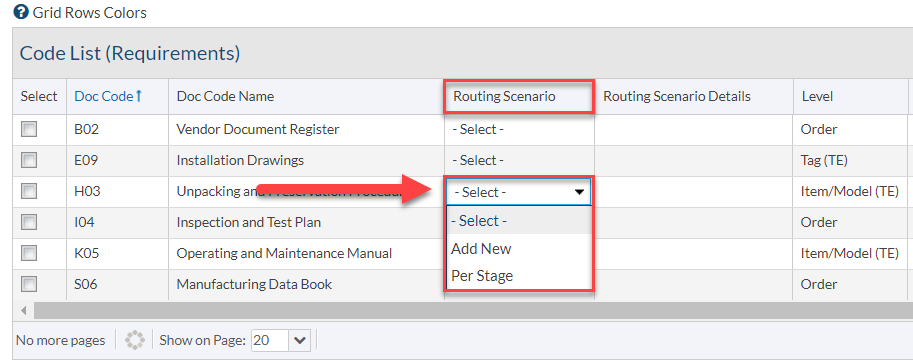
Typically, users will manage routing scenarios from the Code List (Requirements) screen of a specific project.
In the Routing Scenario column, click within the grid in the row for the doc code that requires a routing scenario. Select Add New to create a routing scenario.
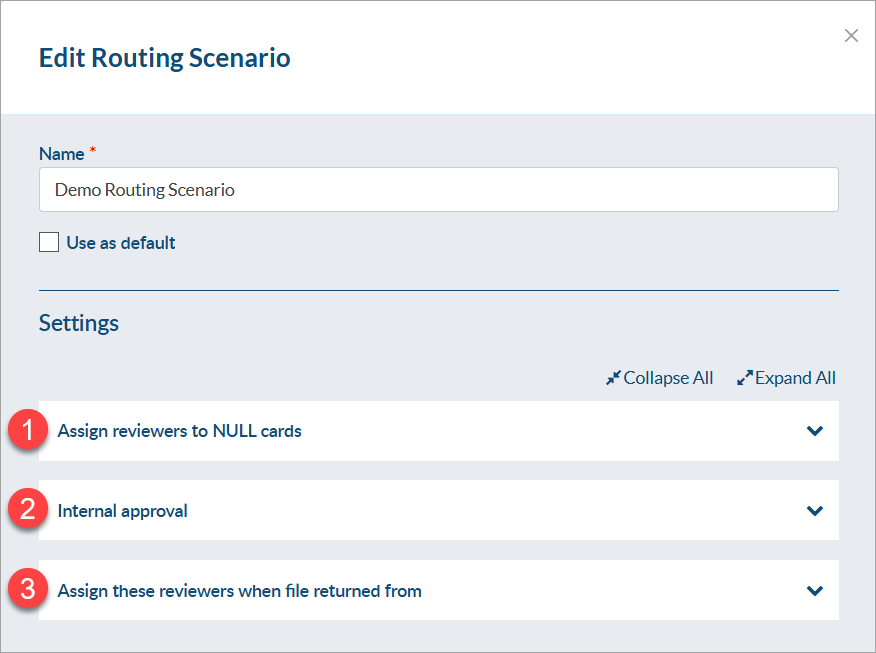
There are several options available to configure. Any number of these can be selected.
Applies to any cards which have status NULL. This can be used to assign cards to the user who is responsible for adding the initial documents to the applicable cards.
Only available if internal approval is enabled on at least one stage in the selected doc code’s stage list.
Applies when (1) a document is assigned to a card through the Files from Customer grid on the Incoming Documents screen, and (2) the return status selected does NOT have “stage complete” selected.
Applies when (1) a document is assigned to a card through the Files from Customer grid on the Incoming Documents screen, and (2) the return status selected does have “stage complete” selected.
Applies when (1) a document is assigned to a card through the Files from Sub-Supplier grid on the Incoming Documents screen.
Applies when (1) a document is assigned to a card through the Files from Internal/3rd party grid on the Incoming Documents screen.
When a role is selected, a specific user(s) can be identified OR the role can be left blank. If blank, the applicable role user(s) on the project (as identified on project main) will be pulled for use in the routing scenario.
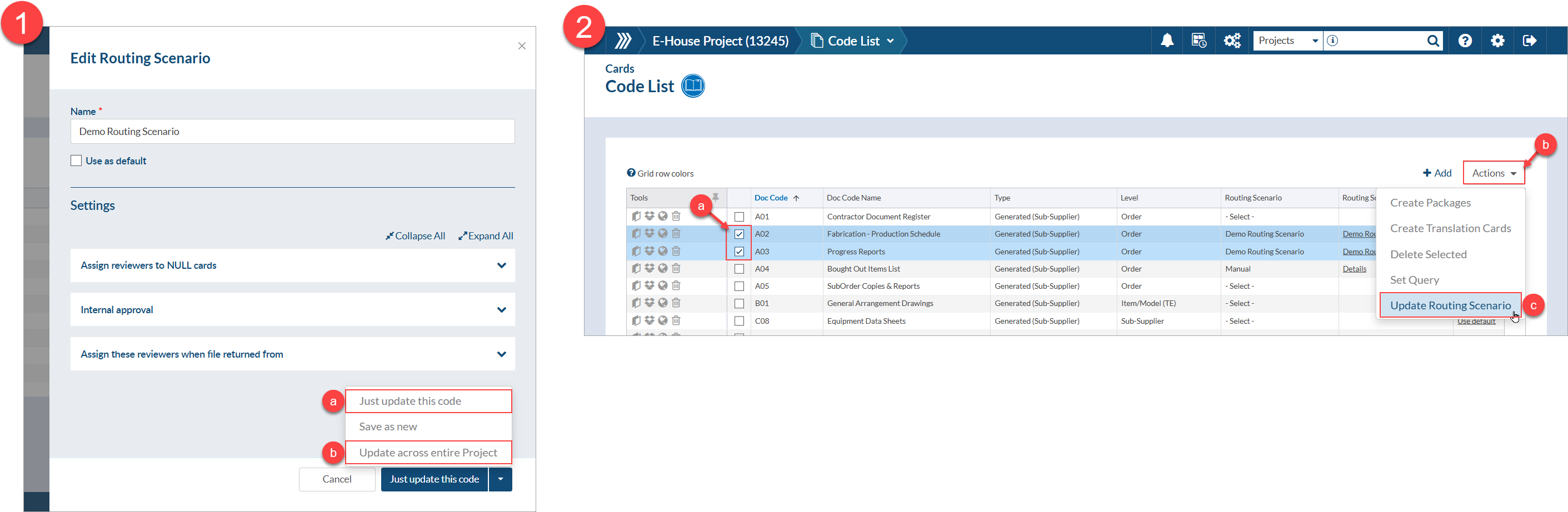
If using a dynamic routing scenario and the role user(s) on the project change after the routing scenario is applied, the originally listed users will remain routed. If the routed users should be updated to reflect the new role users, this can be done in one of two ways:
1) Open the routing scenario details (from the code list) and choosing to either (a) update the routing scenario only for the selected code, or (b) update the routing scenario for all doc codes where the routing scenario is applied.
2) Select the doc codes from the code list, expand the “Actions” drop-down, choose the “Update Routing Scenario” option, and select the same routing scenario as was previously selected.
If the role is left blank on a NULL or internal approval routing scenario and there is no project user assigned to the role, a warning will appear to prompt an adjustment of the project users. This warning will appear above the grid on the Card List, as well as on the project’s Routing Scenario page.
The warning will (a) indicate which role(s) requires configuration, and (b) provide the ability to refresh the routing scenario once the required role(s) have been configured.

On the Routing Scenario page, the impacted routing scenario will be highlighted in red. Once a user is assigned to the role in question, the routing scenario will be highlighted in light red to indicate that it should be re-applied. To re-apply the routing scenario, either select the plus (+) icon under “Tools” OR click the link in the warning message.

Once complete, select Save to save the routing scenario configuration, and then select Save below the grid to apply to routing scenario to the doc code.
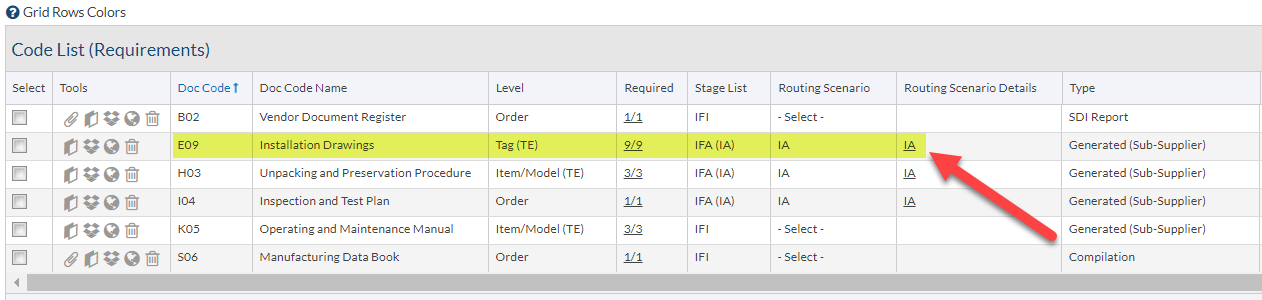
Routing scenarios can be edited from the Code List (Requirements) screen or the Card List screen by selecting the text in the Routing Scenario Details column.
After editing a routing scenario, users can choose one of three options to apply the changes:
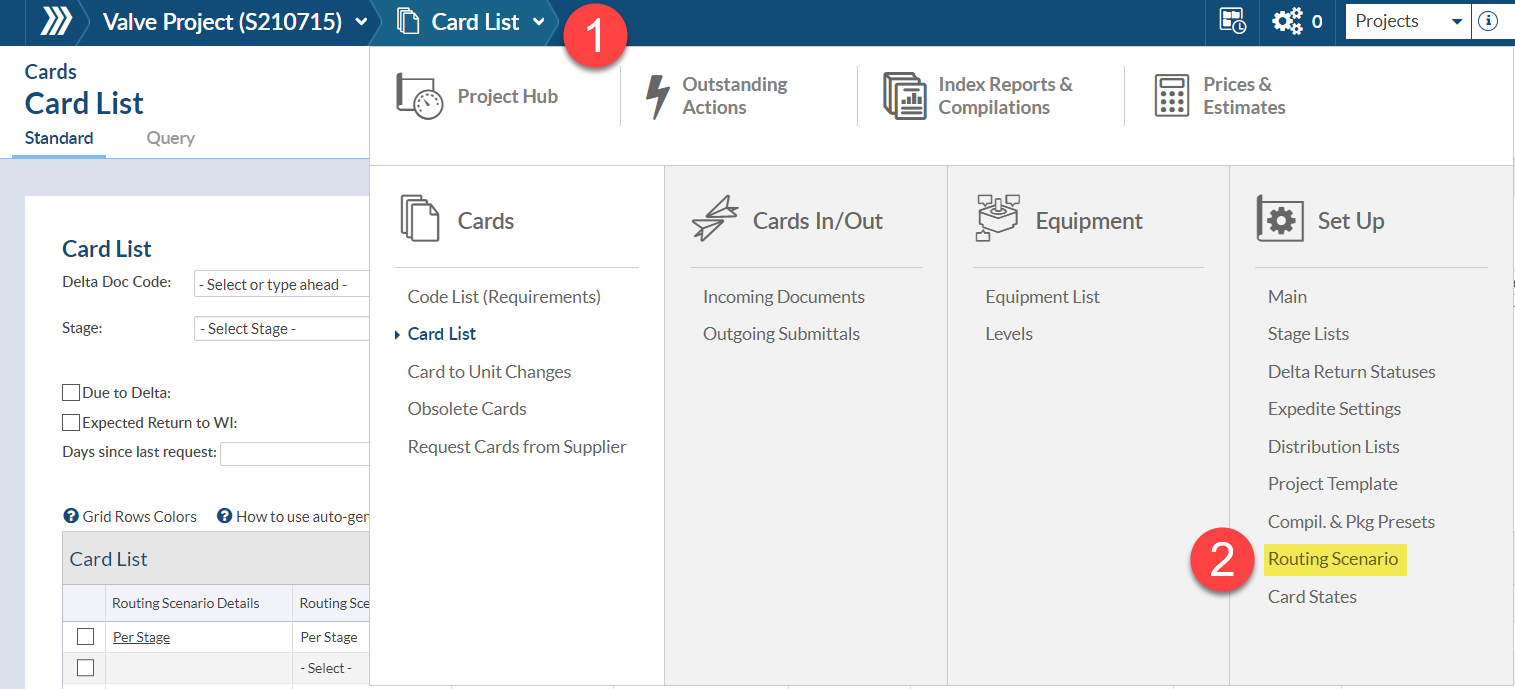
Routing scenarios can also be edited under the project’s routing scenario settings. In a project, (1) open the project menu and (2) select Set Up > Routing Scenario.
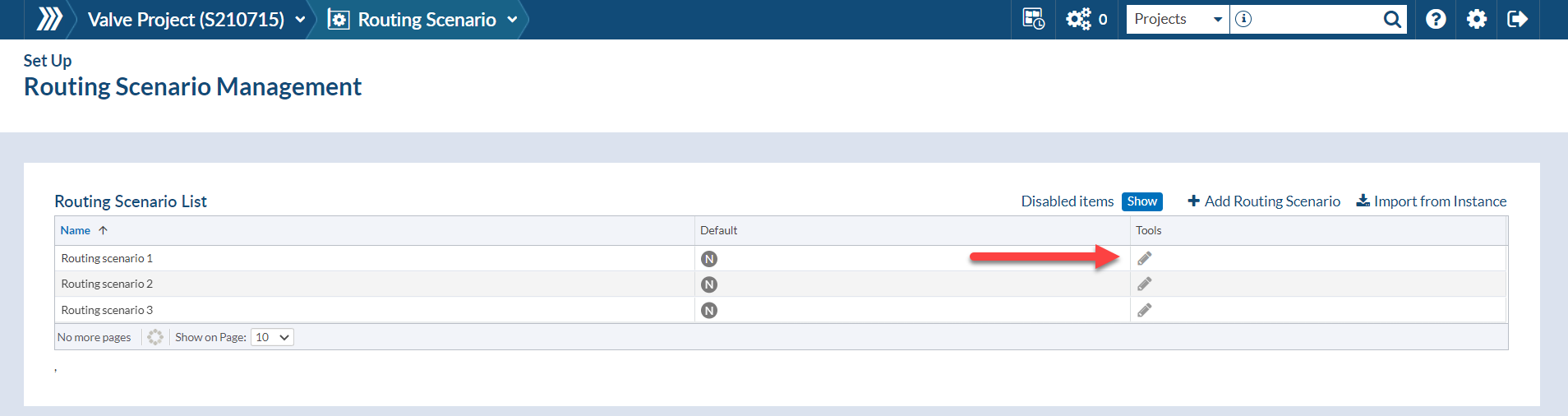
On the Routing Scenario Management screen, select the pencil icon under the Tools column to edit any of the routing scenarios available on the project.
This screen also allows users to add new routing scenarios or import existing scenarios from the instance list.
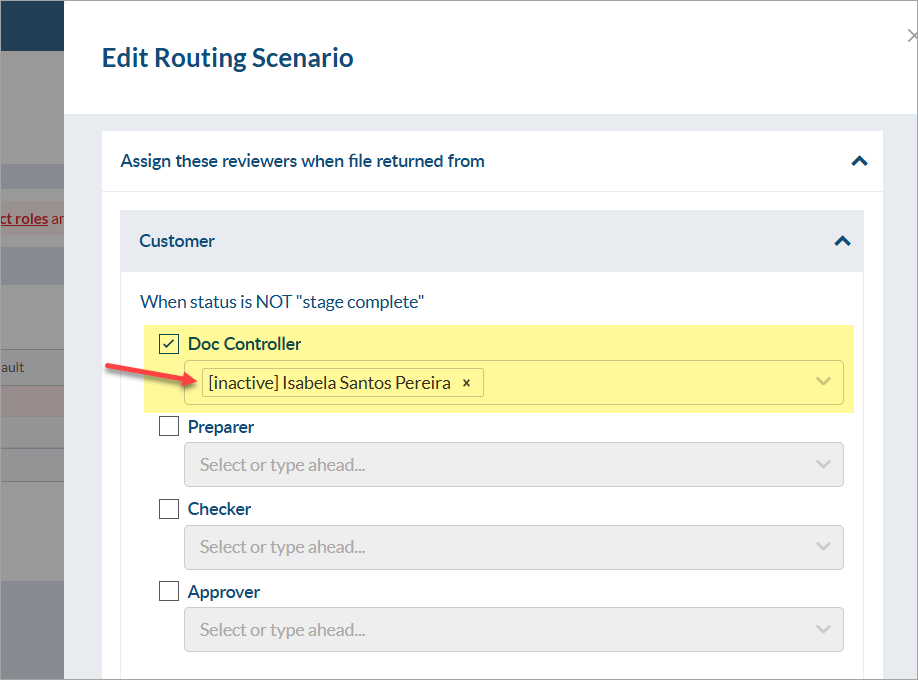
Note: If a user included in a routing scenario has had their account deactivated, the user will still show as part of the routing scenario (with the prefix “[inactive]”) but will be replaced with the Role X user(s) defined on the project when the routing scenario is applied.
Example: If a card is returned from the customer with an incomplete status, the card would be routed to the user(s) listed for Role 1 on the project (and would not be routed to the inactive user).
Admin users can add or edit routing scenarios under the instance settings to apply to all new projects.
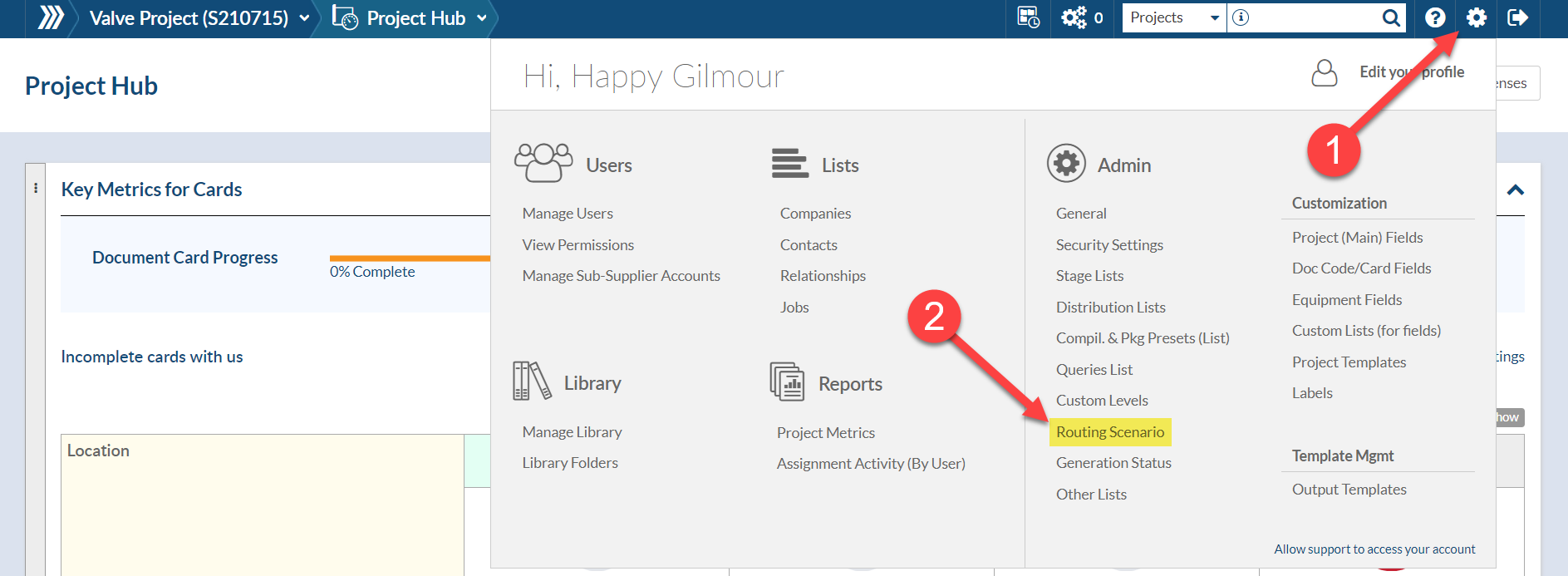
From the settings gear, navigate to Admin > Routing Scenario.
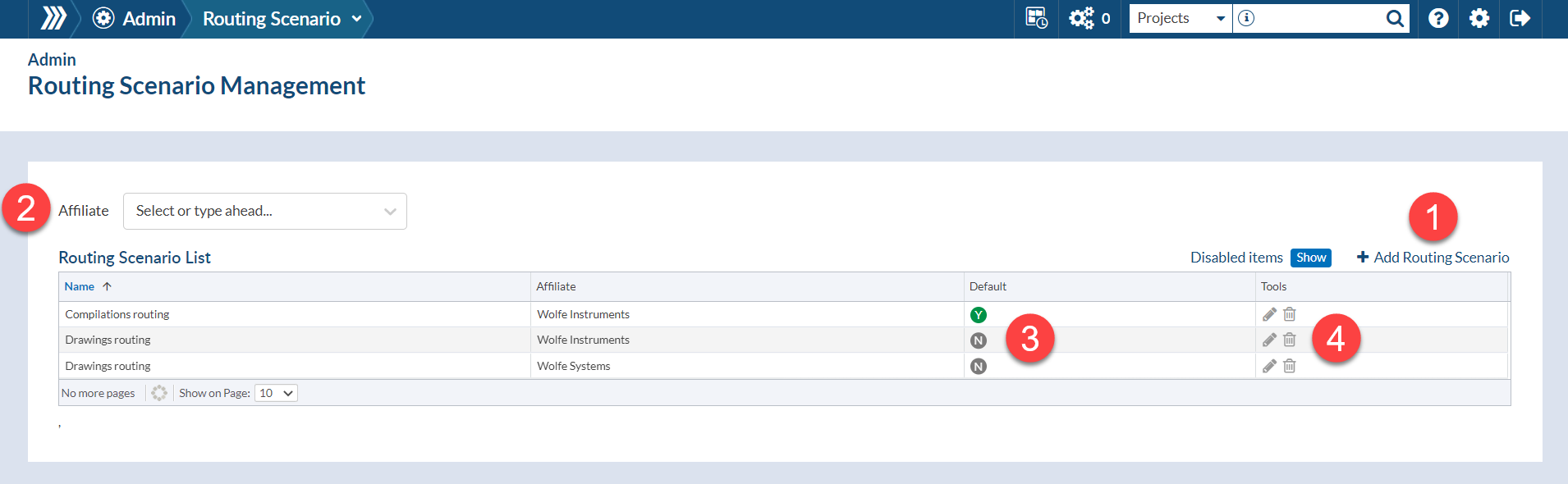
On the Routing Scenario Management screen, the grid displays the existing routing scenarios which will be available to use on all new projects.
To add a new scenario, (1) select Add Routing Scenario and complete the information. This is the same as adding a routing scenario directly to a project, with an additional field to select the affiliate which the routing scenario will belong to.
To filter routing scenarios by affiliate, (2) choose an affiliate from the dropdown at the top left of the grid.
To set a routing scenario as the default for a specific affiliate, check the Use as default box when creating a new scenario, or (3) toggle this option on/off for existing scenarios under the Default column.
To edit or disable a routing scenario, (4) select the icons under the Tools column.
DocBoss is the only true document control system for
suppliers. Book a quick demo to see how we help process
equipment suppliers make more profit with less pain.
Critical project documents often go through 5 to 8 review cycles before achieving final approval, leading to an exponential administrative…

Our DocBoss Support website features a number of great articles, videos and other resources to help you get better use…

We conducted a document control survey that showed that 33% of suppliers of process equipment indicated that creating databooks and…