

Product Updates
May 2026 Release Notification
Here is our May 2026 Release Notification with brand new functionality that is now available to all DocBoss subscribers. This…
Read NowYou can use an IF statement to introduce conditional logic, enabling you to make decisions and execute different code paths based on whether a condition is true or false. This article discusses how to use IF statements in DocBoss.
In DocBoss, IF statements can be used for header/footer patterns to draw different values for different conditions (e.g., drawings require a different heading than all other documents). In these situations, creating a custom doc code/card field can provide additional functionality/flexibility for the header/footer patterns.
To begin, navigate to System Menu > Customization > Doc Code/Card Fields.
1. Create a custom doc code/card field by clicking the “+” icon in the top right of the grid.
2. Name the custom field, set the field type to “List,” and create a new list.

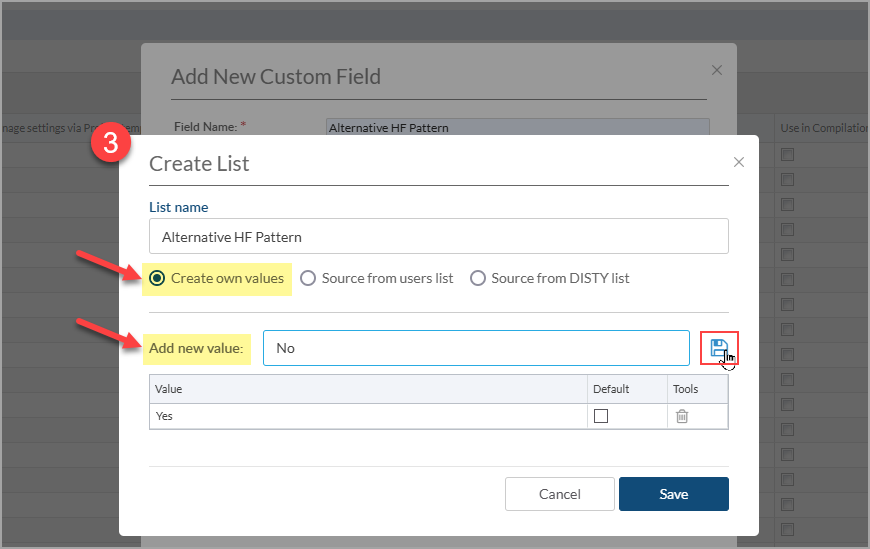
3. Name the list, select the “Create own values” option, and create a “Yes” and a “No” value by typing them into the “Add new value” field and clicking the save button. Once both values are added, save the list. (Note: the “No” value is optional).
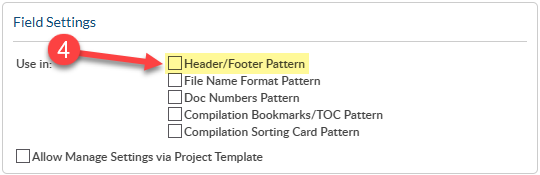
4. Once the list source is set to the new list, enable the field setting for “Header/Footer Pattern” and click save when complete.
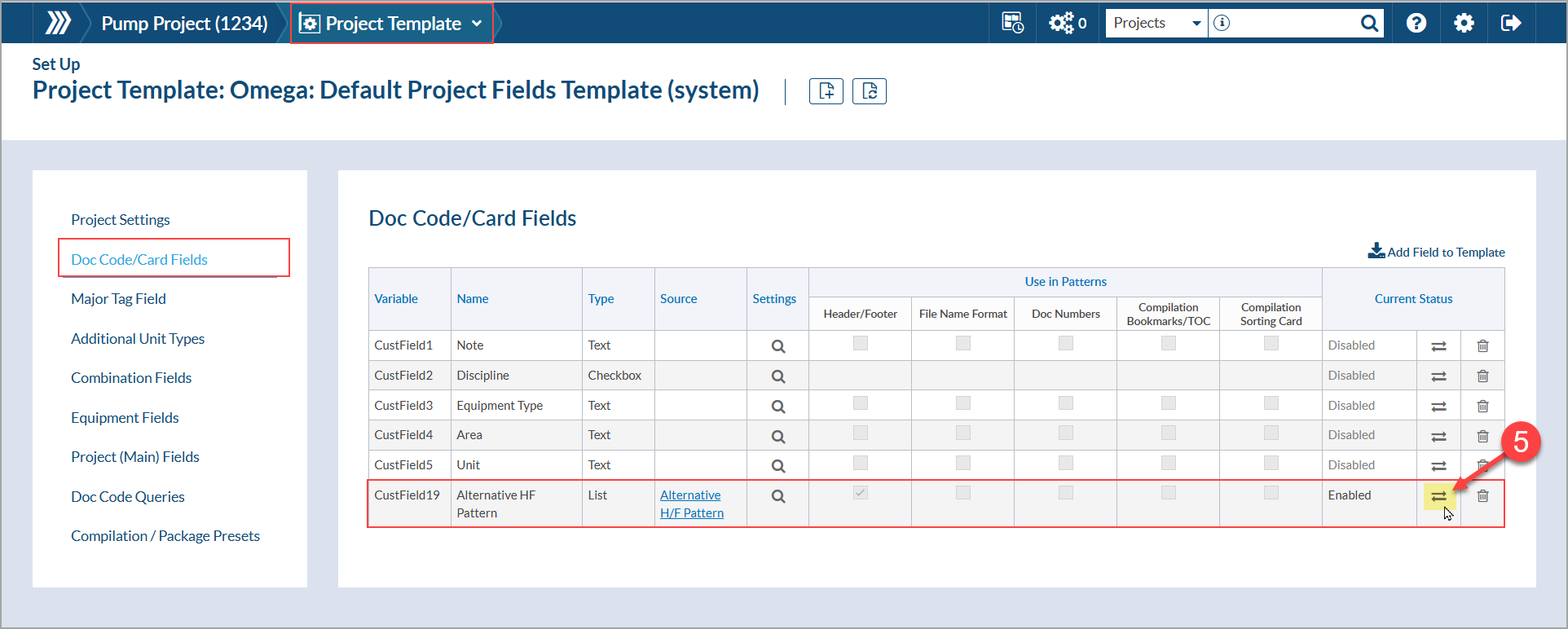
5. Navigate to the project and enable the new field to be used (Project Menu > Set Up > Project Template). In the “Doc Code/Card Fields” section, click on the arrows icon to enable the custom field (changes will auto-save).
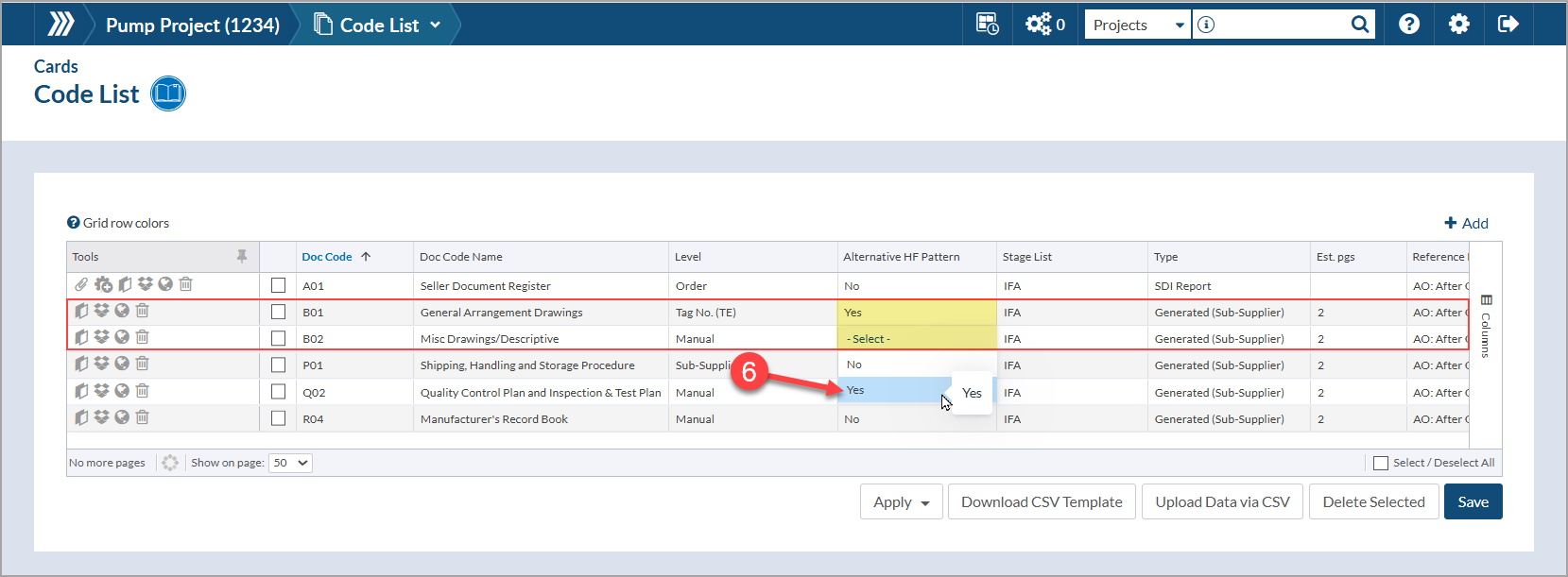
6. Navigate to the code list (Project Menu > Cards > Code List) and set the values for the new custom field. Set the required code(s) to “Yes” and all other codes to “No.” (Note: if the “No” value was not created, all other codes can be left blank (showing “- Select -“))
7. Navigate to the project header/footer settings (Project Menu > Set Up > Main > Headers and Footers) and set the header/footer pattern as required following this general formula: IF (“<CustomFieldName>”=”Yes”,”<ValueIfYes>,”<ValueIfNo>”).
Example:
All cards generated from drawing codes require the Item/Model number(s) in the header. If not a drawing, the PO number should be displayed in the header. The custom field name is “Alternative HF Pattern.”
In this example, the formula would be set as follows: 
Once the values have been set, click “Save Project”
DocBoss is the only true document control system for suppliers. Book a quick demo to see how we help process equipment suppliers make more profit with less pain.
Here is our May 2026 Release Notification with brand new functionality that is now available to all DocBoss subscribers. This…
Read NowHere’s a list of updates found in our February 2026 release. Interface Changes Incoming Documents – Assign pop-up: The layout of the incoming assign…
Read NowIf your EPC projects require you to update equipment as the project progresses, how difficult is it for your current…
Read Now